The Administration section is only available to the user administrator(s)*. As a user administrator you can:
- Grant and modify access to individuals in your organization
- Set user roles and restrict access by customer number
*Organizations can have more than one user administrator.
Each individual given access to Intelligence 360, must have an active Canada Post online user profile that is linked to your organization's contract and main customer number. Sign up an individual for an online user profile.
Registering users and setting permissions
-
On the far right of the top menu bar, select Administration.

-
Below the status bar, in the blue box on the far left, select Register user to register a new user within your organization.

-
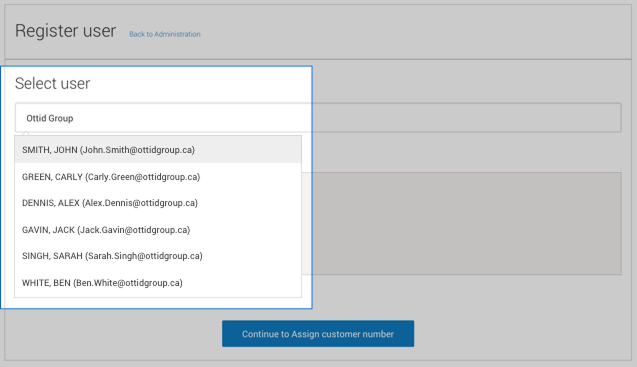
Once the page has loaded, enter the user’s first name, last name or email address in the box below Select user.
You will see a drop-down list of potential users to whom you can give access to Intelligence 360. This list includes anyone in your organization with an active Canada Post online user profile linked to your organization’s contract and main customer number.
-
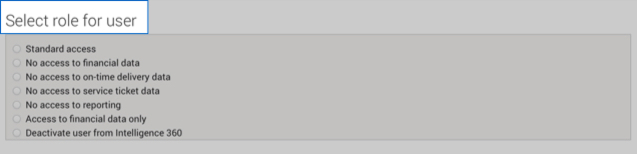
Select the Role for this particular user.
-
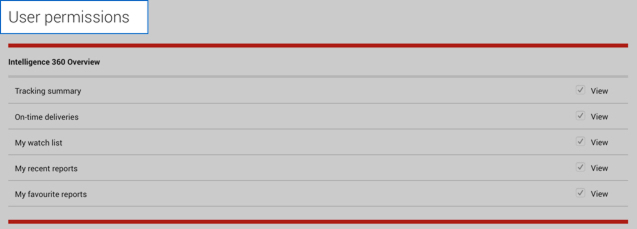
Once you’ve selected the new user’s role, you can view what they will be able to access in Intelligence 360. You can then update the role, if required.
-
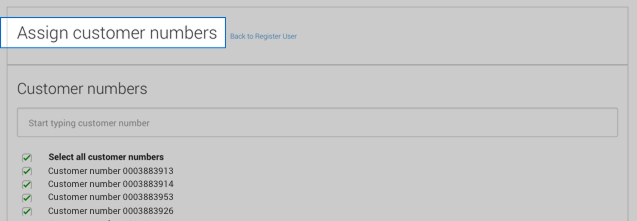
Once the user’s role is chosen, select Continue to Assign customer number to restrict access by customer number.
The user administrator can assign all, multiple or just one of the company’s customer number to individual users. Once registered, users will only see information that relates to the customer numbers assigned to their Intelligence 360 user role.
-
Click the Save button at the bottom of the page to save your selection. The new user will get a welcome email with a link to access Intelligence 360.