Step 1: Check your address book location
-
In EST 2.0, from the Configuration menu, select Address Book Location.
- If the location shows your address book is on the Canada Post server, follow the instructions below.
Step 2: Store your address books locally
-
In EST 2.0, in the left nav, right-click on your address book and select Export entire address book (all addresses, all groups).
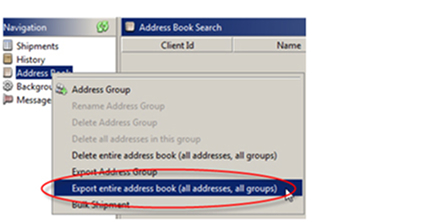
- Save the file locally on your computer.
-
From the Configuration menu, select Address Book Location > Please store my address information locally on my desktop (internal database).
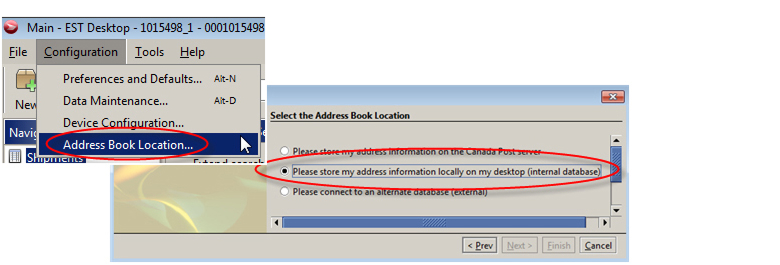
-
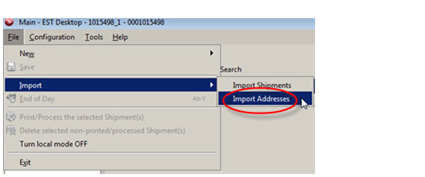
Select File > Import > Import Addresses. Select the address file you just exported and saved to your computer.
Your address book is now stored locally, and you will be able to access it during an outage or when you do not have Internet access. Please read more about the requirements and restrictions of local mode in EST 2.0.