How to create a shipping profile report: by customer number

This monthly report provides consolidated information related to net cost ($), volume and average weight (kg or VE -Volumetric Equivalent) of items. Information is summarized by service type (like Expedited Parcel™ or Xpresspost™) and/or customer number(s).

For up-to-date results, generate this report after a Tuesday, as information is uploaded each week on Tuesday.

Use the following steps to create a report:

  1. Pick My reports in your menu bar.

    Intelligence 360 navigation menu with “My reports” option highlighted.
  2. Open the Create new report button.

    Intelligence 360 menu with “Create new report” button highlighted.
  3. Select Create in the “Shipping profile: by customer number” box. You can preview the report before you create it.
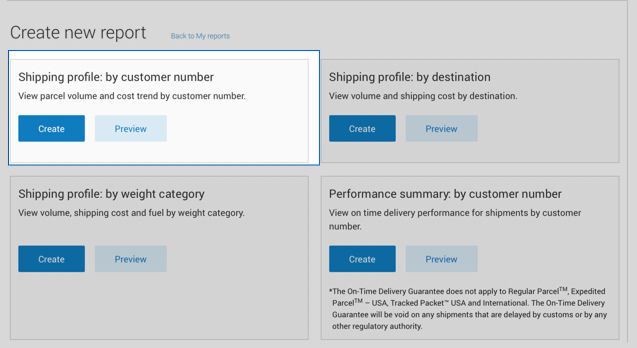
    Intelligence 360 “Create new report” menu with “Shipping profile: by customer number” option highlighted.
  4. Enter the Start and End date of the time period* you want your report to cover.
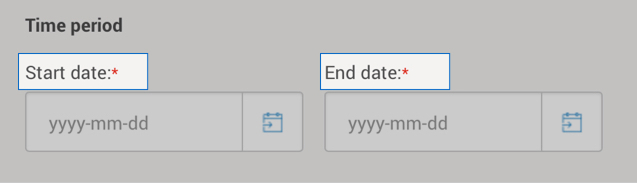
    Intelligence 360 time period selection.

    *You can access information as far back as 2 years. But you can't pull up information prior to the time you set up Intelligence 360.

  5. Pick the Customer number(s) whose data you want in the report. "Select all" customer numbers is the default.
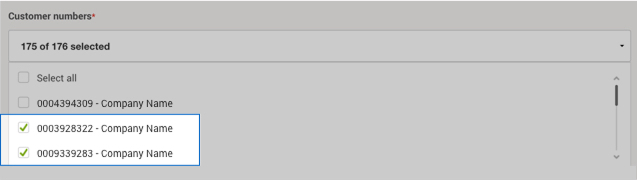
    Intelligence 360 “Customer numbers” drop down list.
  6. Choose a Destination location – you can only generate a report for one destination choice at a time. Press the Continue button.

    Intelligence 360 “Destination” menu options.
  7. Pick the shipping Service type(s) whose data you want to see.
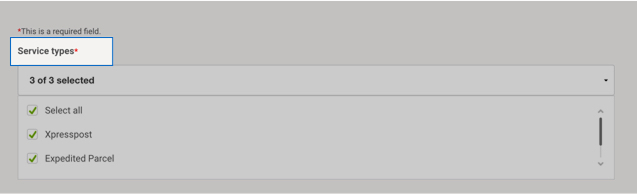
    Intelligence 360 “Service types” drop down list.
  8. Pick Aggregate data by Service type, customer number or both.

    Intelligence 360 “Aggregate data” list
  9. Enter a Report title, Email address and format to download.
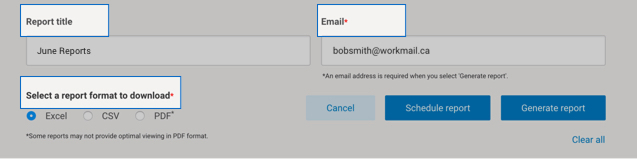
    Intelligence 360 menu with fields for a report title, email address and download format fields highlighted.

You can schedule a report to run on a recurring time frame, or generate a report immediately.

Once a report is generated, you can:

  • Download it
  • Add it to your favourites (up to 5 are allowed)
  • Edit it
  • Schedule, email and save as a template

Key definitions

Description Term Definition
Net Cost The sum of all items billed within the timeframe you selected. Net cost includes ALL surcharges and fees (such as fuel surcharge and signature). Net cost does NOT include applicable taxes.
Volume The number of items billed within the timeframe you selected.
Average weight (KG or VE) The average weight of all items billed within the timeframe you selected. This value will either be the declared weight or the volumetric equivalent (VE) entered within your shipping system.

