-
Pick My reports in your menu bar.

-
Open the Create new report button.

-
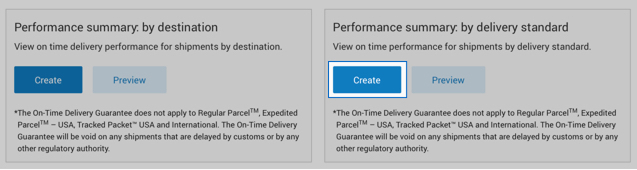
Select Create in the “Performance summary: by delivery standard” box. You can preview the report before you create it.
-
Enter the Start and End date of the time period* you want your report to cover.
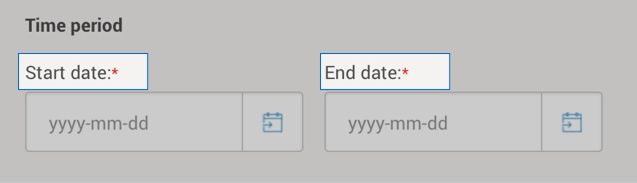
*You can access information as far back as 2 years. But you can't pull up information prior to the time you set up Intelligence 360.
-
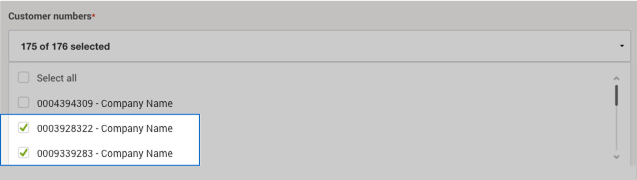
Pick the Customer number(s) whose data you want in the report. "Select all" customer numbers is the default.
-
Choose a Destination location – you can only generate a report for one destination choice at a time. Press the Continue button.

-
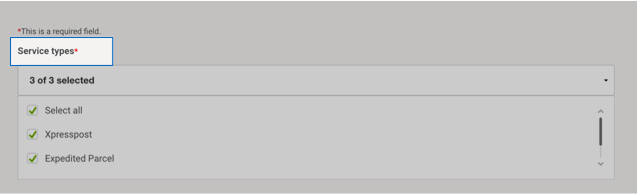
Pick the shipping Service type(s) whose data you want to see.
-
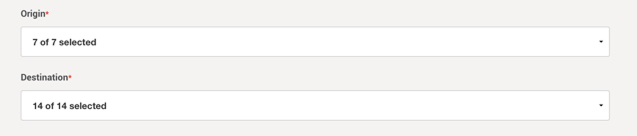
Enter the Origin province and Destination province you want a report on. "Select all" origin and destination provinces where you ship is the default.
-
Enter a Report title, Email address and format to download.
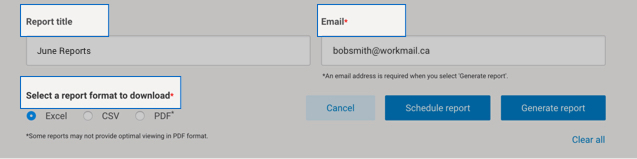
You can schedule a report to run on a recurring time frame, or generate a report immediately.
Once a report is generated, you can:
- Download it
- Add it to your favourites (up to 5 are allowed)
- Edit it
- Schedule, email and save as a template
How delivery performance is calculated within performance summary reports
Intelligence 360 checks for an electronic manifest scan AND a delivered or a stop-the-clock scan (for example an attempted delivery scan) within the report time frame that you have selected.
If these 2 scans exist, then the item will be included in delivery performance calculations.
Intelligence 360 then compares the delivered or stop-the-clock scan to the delivery standard.