Track and filter exceptions in Intelligence 360

Find items with unforeseen delivery interruptions.

Exceptions are your outbound or inbound items with unforeseen delivery interruptions.

Use Intelligence 360™ to check for exceptions, set up notifications to keep you informed of their status, and filter exceptions by different categories.

View exceptions in Intelligence 360

Select Exceptions from the top menu bar.

Intelligence 360 menu with “Exceptions” option highlighted.

Select Outbound or Inbound to view your exceptions in each category.
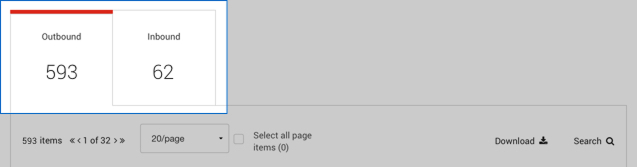
Intelligence 360 menu with Outbound and Inbound exceptions displayed.

See the status for each exception under the Last scan status column.
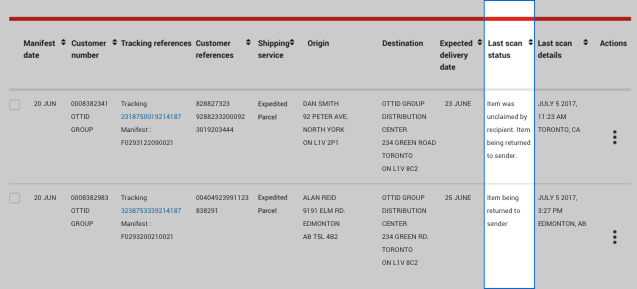
Intelligence 360 menu with “Last scan status” column highlighted.

Types of exceptions

Address verification: An invalid postal format or postal code error means that the item requires a valid address before it can be delivered.

Customs – Appeal of duties: Recipient is disputing the duty charges assessed by Canada Border Services Agency (CBSA).

Delayed – Beyond Canada Post’s control: This delivery delay (also known as force majeure) is caused by a situation beyond Canada Post’s reasonable control. This includes severe weather, acts of God, demonstrations, labour disruption, major power outage and so on.

Delayed – Processing error: Item is re-routed due to a processing error. Possible delay to delivery of item.

Final delivery notice: The recipient must collect the item at a designated Post Office within a specific time period. If not collected, the item is returned to sender.

Item damaged: Item arrived at a postal facility damaged. Possible delay to delivery of item.

Label correction: Canada Post is trying to correct an unreadable barcode on the shipping label. Until corrected, the item is undeliverable. Possible delay to delivery of item.

On hold: Item on hold. Reasons could include: at the recipient’s request, the business being closed for the day, item held at customs, or verifying recipient’s address.

Redirected: Item being redirected to the recipient’s new address. The table below outlines specific redirection codes:

Redirect exceptions Redirection code Definition
1230 – Redirection requested by shipper A redirection request was submitted by the shipper for this item, and it was determined eligible for this service.
1232 – Redirection requested A redirection request was submitted for this item, and attempts will be made to redirect it.
1234 – Redirection request cancelled by shipper A previous redirection request for this item has since been cancelled. The item is proceeding to its original destination.
1240 – Item processed The item has a redirection request and is currently being handled by Canada Post.
1241 – Item redirected The item has been re-labelled for redirection and will be processed for delivery.
1244 – Item processed The item has a redirection request and is currently being handled by Canada Post.
1245 – Item could not be redirected Although originally determined to be eligible, the item could not be redirected and has been delivered to its original destination. No fees will apply.

Return to sender: Item being returned to sender when one or more of the following conditions exist: item refused or endorsed as moved or unknown, unclaimed by the receiver, delivery address is incomplete or does not exist or no forwarding address.

Undeliverable: Item cannot be delivered as addressed. It cannot be returned to the shipper. It is sent to the Undeliverable Mail Office.

Search and download functionality

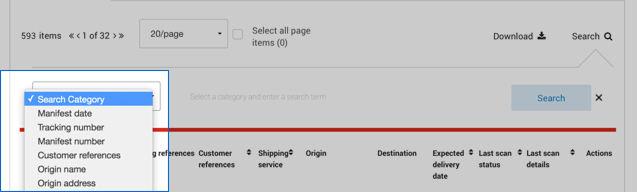
You can click on the Search icon to view the search bar. Then select an option from the Search Category drop-down menu.

If you have questions about column heading definitions, please refer to Definitions of terms used in Intelligence 360.

Intelligence 360 Search Category drop-down menu.

You can also sort exceptions in ascending or descending order by selecting any of the column headings.

Intelligence 360 Search Category menu column headings.

Add an exception to your watch list or set a notification

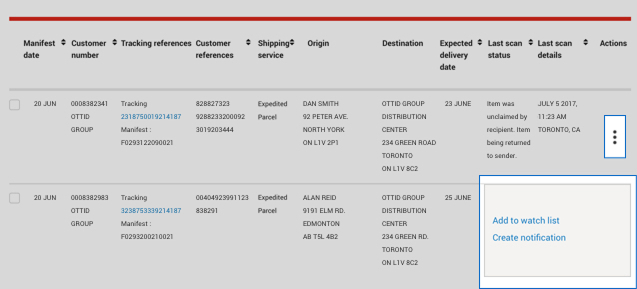
Select the 3-dot menu under Actions. Now you can Add to watch list or Create notification for an item.

“Actions” 3-dot menu selected showing “Add to watch list” and “Create notification” options.

Keep an eye on important items by adding up to 20 items to your watch list. They can be quickly accessed in the overview screen.

Notifications help you to stay on top of the status of your important items. Set up real-time tracking notifications to get an update each time an item moves to the next stage in the delivery process.

You can see notifications directly in Intelligence 360 in the My notifications page. You can also receive notifications by email. They can be sent to up to 10 different email addresses.

Filter exceptions

Use filters to view your exceptions more efficiently. In either the outbound or inbound tab, select Edit filters from top right.

Intelligence 360 menu with “Edit filters” button highlighted.

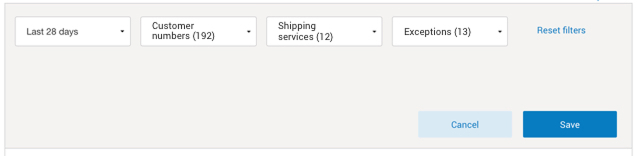
This lets you filter items by timeframe, customer number, shipping service, and type of exception(s)

Intelligence 360 timeframe, customer number, shipping service and exceptions filter options.

You can Download your exceptions in 3 different formats.

Intelligence 360 menu with “Download” button highlighted.

Select Download and choose PDF*, CSV or Excel format.

*Some reports may not provide optimal viewing in PDF format.

Can't find the tracking number you're looking for? Update your list by clicking on refresh button to the right of Last updated.