Creating notifications in Intelligence 360
-
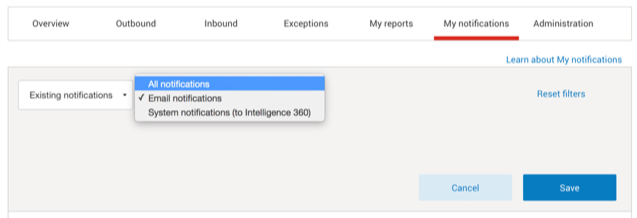
From the top menu bar, select My notifications.

-
Select Create new notification.

-
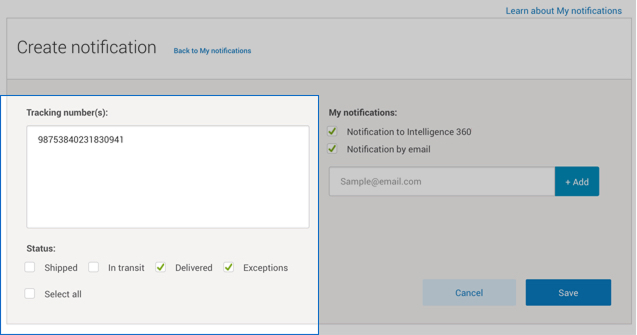
Enter the tracking number(s) and choose which – or all – of the four statuses you want to receive notifications for.
-
When the item has reached its desired status, a green check mark will appear within the My notification section. If you picked it as an option, you’ll also receive an email notification.
Viewing notifications in Intelligence 360
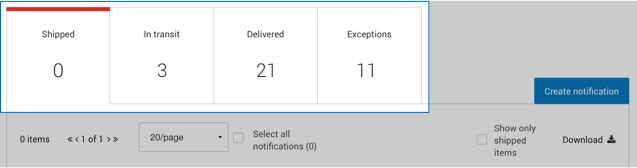
Once you’ve created a notification, items will be listed in one of four tabs; Shipped, In transit, Delivered and Exceptions. The number on each tab tells you how many items correspond to each status.
If you have questions about any of the menu items, please refer to Definitions of terms used in Intelligence 360.
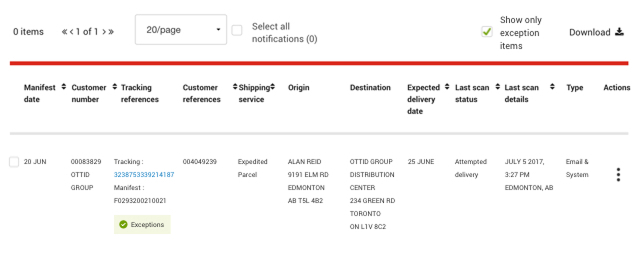
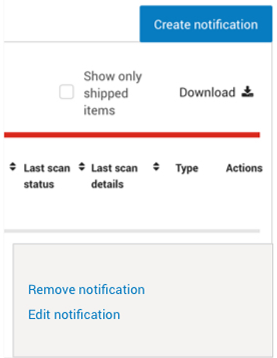
To remove an item from your list of notifications, open the 3 vertical dots below the Action column, then choose Remove notification.
Filtering notifications in Intelligence 360
Use filters to efficiently view your notifications. Select Edit filters to view new and existing notifications. You can also see the items you selected for email notifications.