How to view inbound items in Intelligence 360
Select Inbound in the top menu.

The Inbound tab shows how many items were returned to you over the past 28 days. You can also see a rolling 5 business day view of returned items.
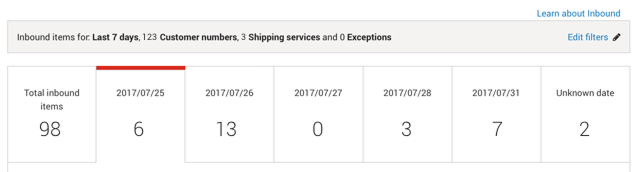
Filter inbound items
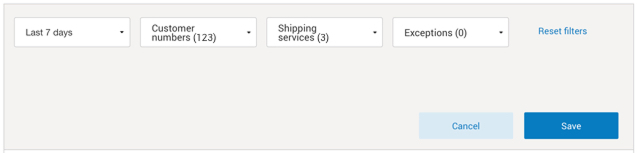
Select Edit filters to choose the items you wish to view.

You can filter by timeframe, customer number, shipping service and exceptions.
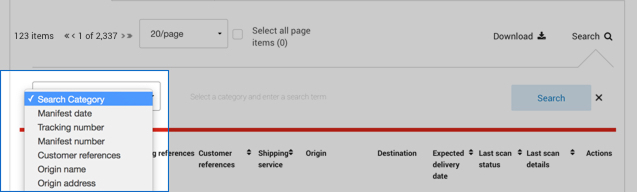
Search and download functionality
You can click on the Search icon to view the search bar. Then select an option from the Search Category drop-down menu.
If you have questions about column heading definitions, please refer to Definitions of terms used in Intelligence 360.
You can Download your inbound items in 3 different formats, PDF*, CSV or Excel.
*Some reports may not provide optimal viewing in PDF format.
Only items showing on your screen are downloaded. To view large amounts of information, create a Tracking summary report.
Can't find the tracking number you're looking for? Update your list by clicking on refresh button to the right of Last updated.
Add an inbound item to your watch list and create a notification
Select the 3-dot menu under Actions. Now you can Add to watch list or Create notification for an item.
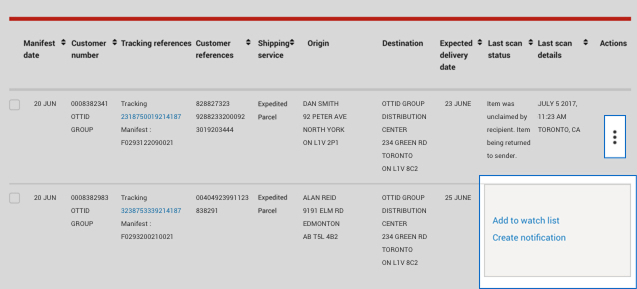
Keep a close eye on your important items by adding up to 20 items to your watch list which can be quickly accessed within the overview screen.
Setup real-time tracking notifications to get an update each time an item moves to the next stage in the delivery process. You can receive notifications directly within the tool within the My notifications page or by email. Notifications can be sent to up to 10 different email addresses.