Please note: Check the Adobe website periodically to make sure you have the latest template version.
Browse this topic
2 window Oversize envelope requirements
2 window Oversize envelopes must meet the requirements outlined on this page.
- The Adobe Illustrator™ (AI) template is driven by layers. In AI, go to WindowLayers if the layers palette is not already displayed. See template features below to learn about the different layers.
- Click on the eye icon of a layer to show or hide the layer.
- Save the file or export it to any preferred file-type after you make edits or layer changes.
- Your artwork is now ready for your next mailing campaign.
.svg "A screenshot of the different layers in Adobe Illustrator")
- Indicia layers. A variety of postal indicia are included on separate layers. Select the appropriate layer or indicia required for your mailing.
- Destination address layer and return address layer. You can edit the addresses on the destination address layer and return address layer as required.
- Address and postage zones layer. The address and postage zones layer outlines the areas set out for the placement of addresses and postage. The address must appear in the areas outlined.
- Graphics and quiet zones layer. The graphics and quiet zones layer outlines the areas set out for the placement of text or images/graphics and quiet zones which must be kept free of graphics and text (other than address information).
- Graphics sample layer. The graphic sample layer has an example of graphics/text and colours applied to the mail item.
Please note:
- We developed the Machineable Mail Advisor tool to help you design envelopes, self-mailers, and cards that meet our Machineable specifications. By delineating the areas that are reserved for addressing and postage, the tool is also meant to highlight and give you the opportunity to leverage the areas available for customization. The tool is based on our Machineable Mail designing module and outlines the basic design requirements for Machineable items.
- For complete requirements, you must consult the applicable customer guide for your chosen service.
- This tool allows you to download a mail template and then modify certain elements using the design software of your choice. But, if you alter the size or layout of a template, it may render the item out of specification, potentially disqualifying it from the expected services or applicable prices. Such modifications may also impact envelope/card manufacturing or postage costs. It’s your responsibility to make sure that final printed envelopes, self-mailers, or cards meet all requirements.
- We’ve made reasonable efforts to make sure that the Machineable Mail advisor is accurate at the time of release but we accept no liability for any potential inaccuracies or omissions.
- ™ Trademark of Adobe Systems Inc.
Layer 1
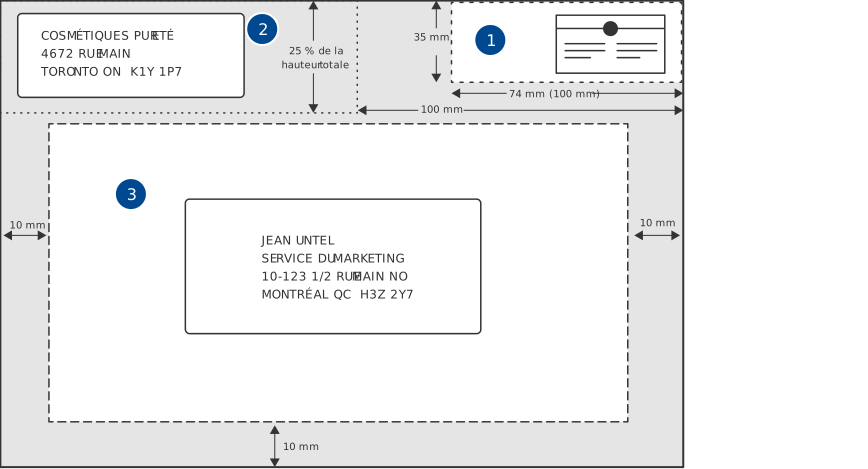
- Postage zone. The postage zone is found in the top right of the envelope. The size of the postage zone is approximately 35 mm from the top and 74 mm from the right edge of the envelope. 100 mm must also be kept clear from the right edge of the envelope. If using a postage meter, the postage zone is 35 mm by 100 mm.
- Return address zone. The return address zone is found in the top left of the envelope. The return address zone itself is to be 25% from the top edge of the envelope and no longer than 100 mm from the left edge of the envelope.
- Destination address zone. The destination address zone is found 25% of the total height of the envelope down from the top, 10 mm from the left side of the envelope, 10 mm from the bottom, and 10 mm from the right side of the envelope.
Layer 2
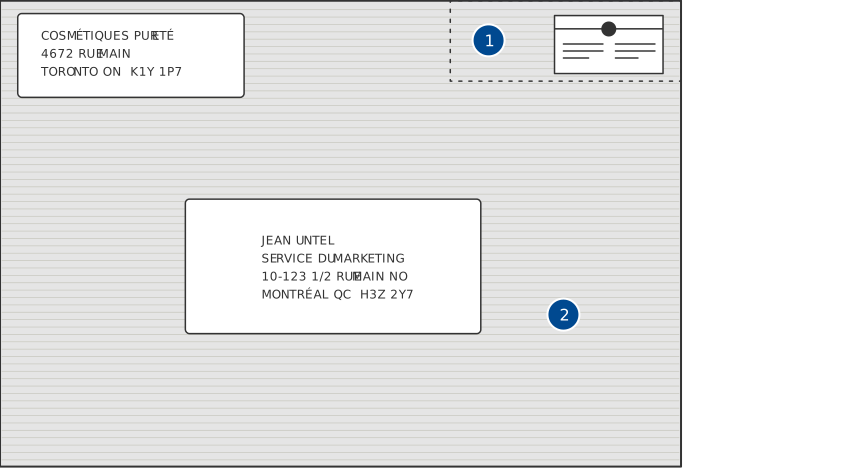
- Postage zone. The postage zone is found in the top right of the envelope.
- Graphics zone. You can place graphics anywhere outside the quiet zone.
Layer 3
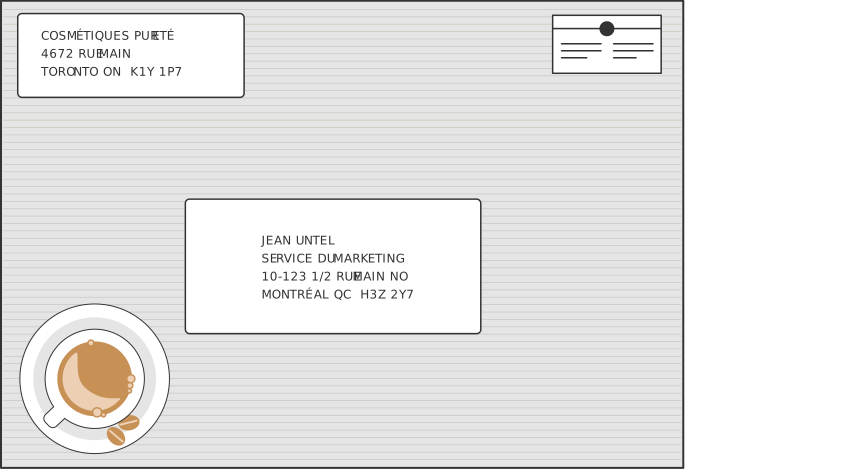
An example of a 2 window Oversize horizontal envelope with graphic.
Layer 1
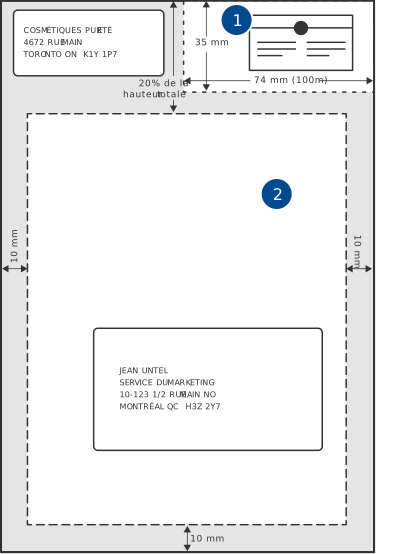
- Postage zone. The postage zone is found in the top right of the envelope. The size of the postage zone is approximately 35 mm from the top and 74 mm from the right edge of the envelope. If using a postage meter, the postage zone is 35 mm by 100 mm.
- Destination address zone. The destination address zone is found 20% of the total height of the envelope down from the top, 10 mm from the left side of the envelope and 10 mm from the bottom of the envelope.
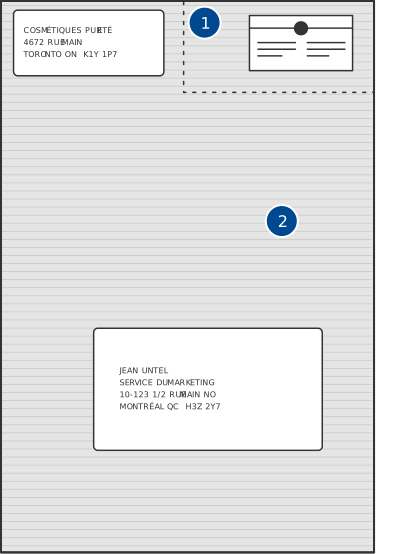
Layer 2
- Postage zone. The postage zone is found in the top right of the envelope.
- Graphics zone. You can place graphics anywhere outside the quiet zone.
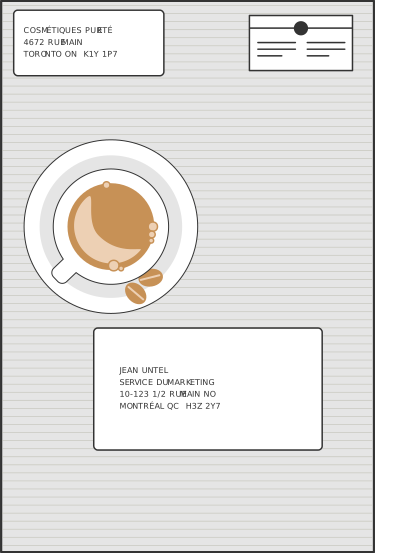
Layer 3
An example of a 2 window Oversize vertical envelope with graphic.